Light Space: Store, Review, and Showcase Your 3D Models
Updated: November 2026 · Light Tracer Render 3.4 and later
You’ve set up a ring scene on your workstation: the metal, the diamond, the lighting. That evening, the client asks to see the piece from the side, and all you have with you is your laptop. Now you have to find the project, copy it over, make sure it’s the latest version, and render a new view.
Small chores like this come up on almost every commission, especially when you switch between computers, juggle several projects, and discuss details over messages.
Light Space is the cloud platform built into Light Tracer Render. Keep your scenes in the cloud, open them on any device, and send the client a link to an interactive 3D model they can rotate and comment on. Once the design is approved, embed the same scene on your website.
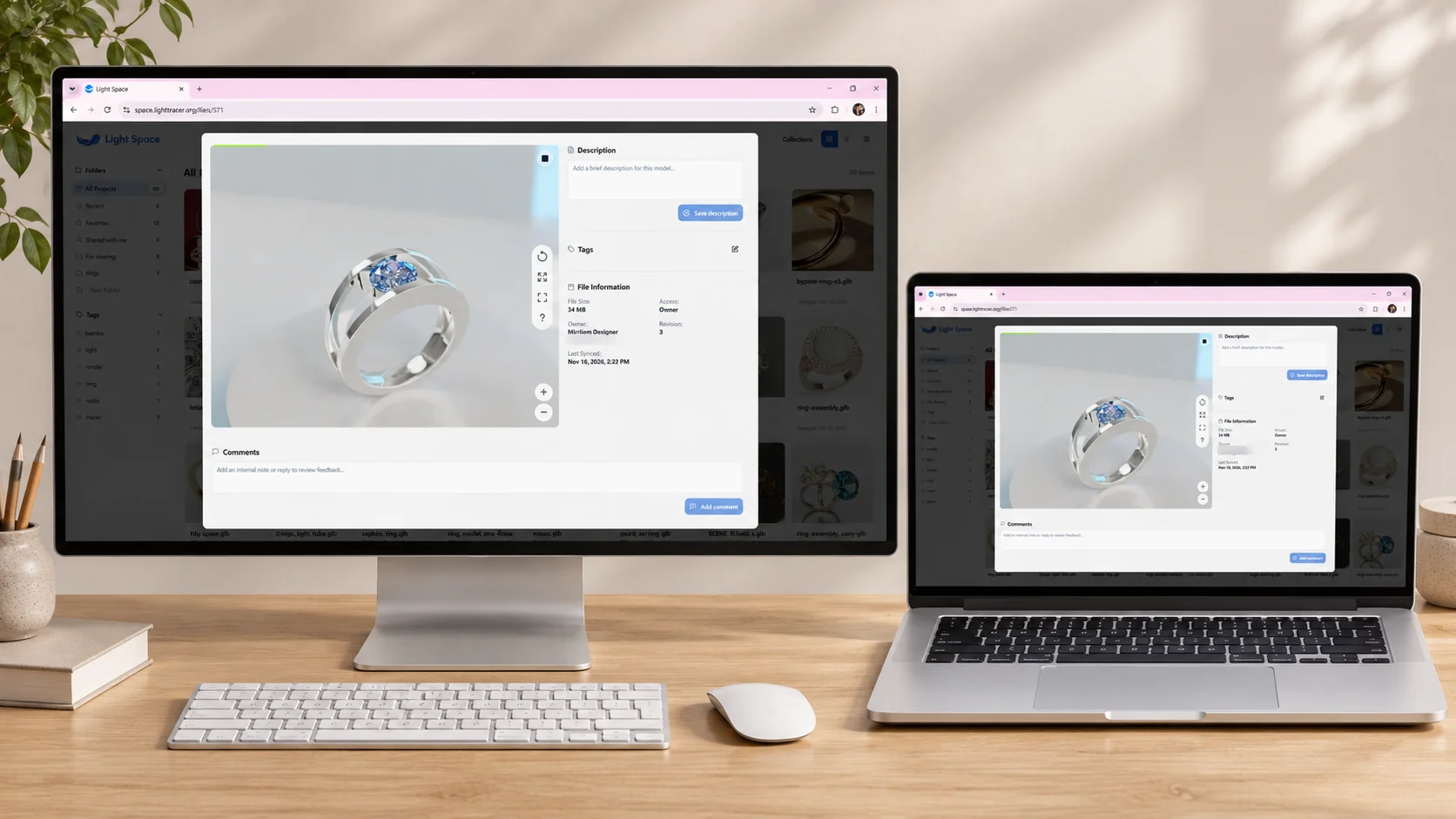
Sync Your 3D Projects Between Computers
In jewelry visualization, the whole scene matters: the tone of the metal, the gemstone material, the lighting, and the camera all shape how the client sees the piece. You may want to come back to that exact setup tomorrow or in six months.
Say a customer buys a ring and later orders matching earrings. With the saved scene, you can give the earrings the same look as the ring and see exactly which variant the client approved.
To move a scene to Light Space and back:
- In Light Tracer Render, click Upload on the toolbar, then Sync now. The scene is uploaded as it is.
- On another computer, sign in to Light Space and find the project.
- Click Open in Light Tracer to continue in the web app or the desktop app.
- When you’ve made changes, click Re-sync to update the cloud copy.
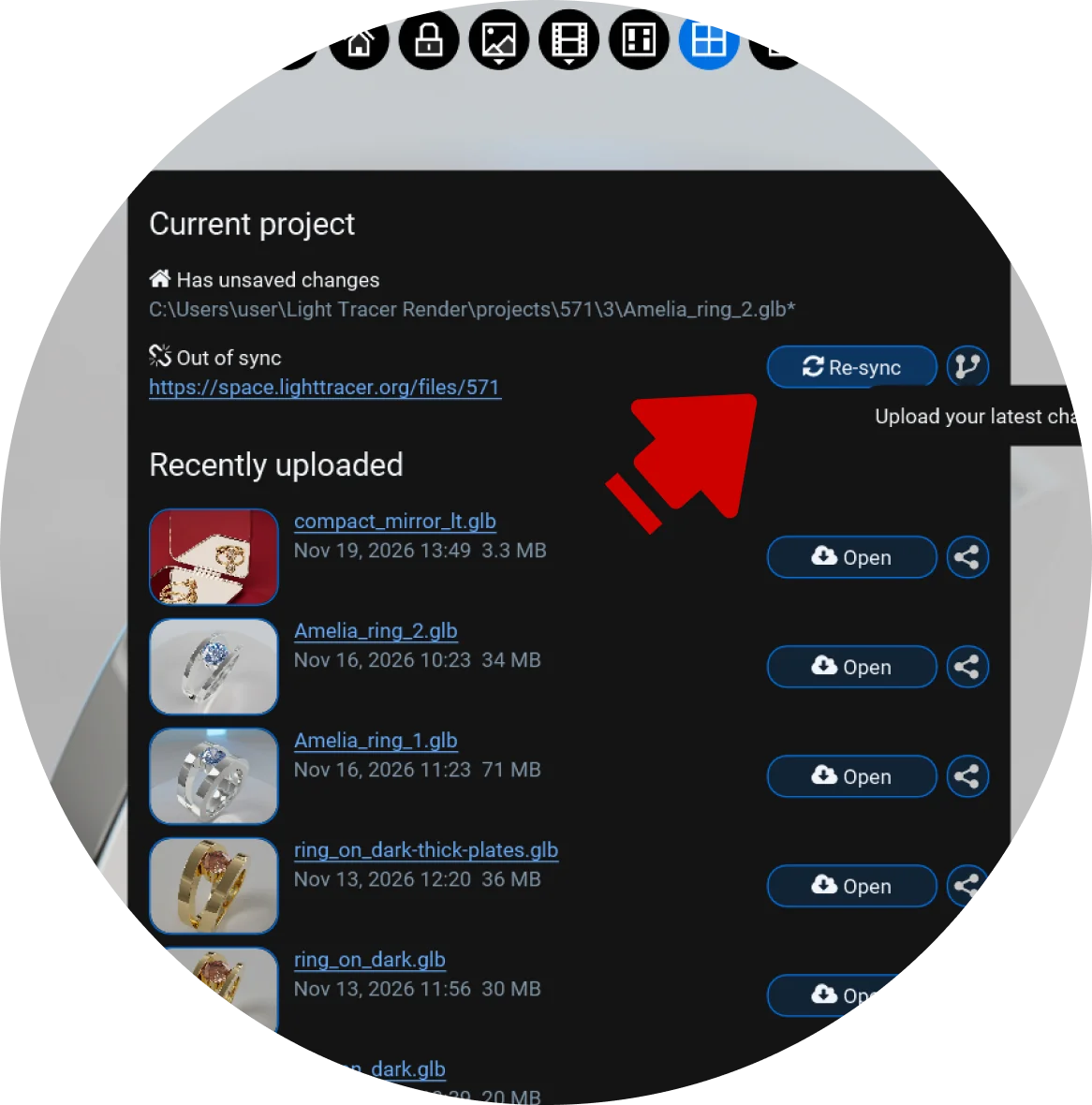
Tip: Re-sync before you leave your workstation, and your laptop will open the project exactly where you stopped. If you forget, Light Tracer Render offers to sync the cloud project when you quit.
Light Tracer Render users get 2 GB of Light Space storage for free, and models are encrypted before they are uploaded.
Find Models by Client, Collection, or Name
The more projects you have, the harder it gets to find the one you need.
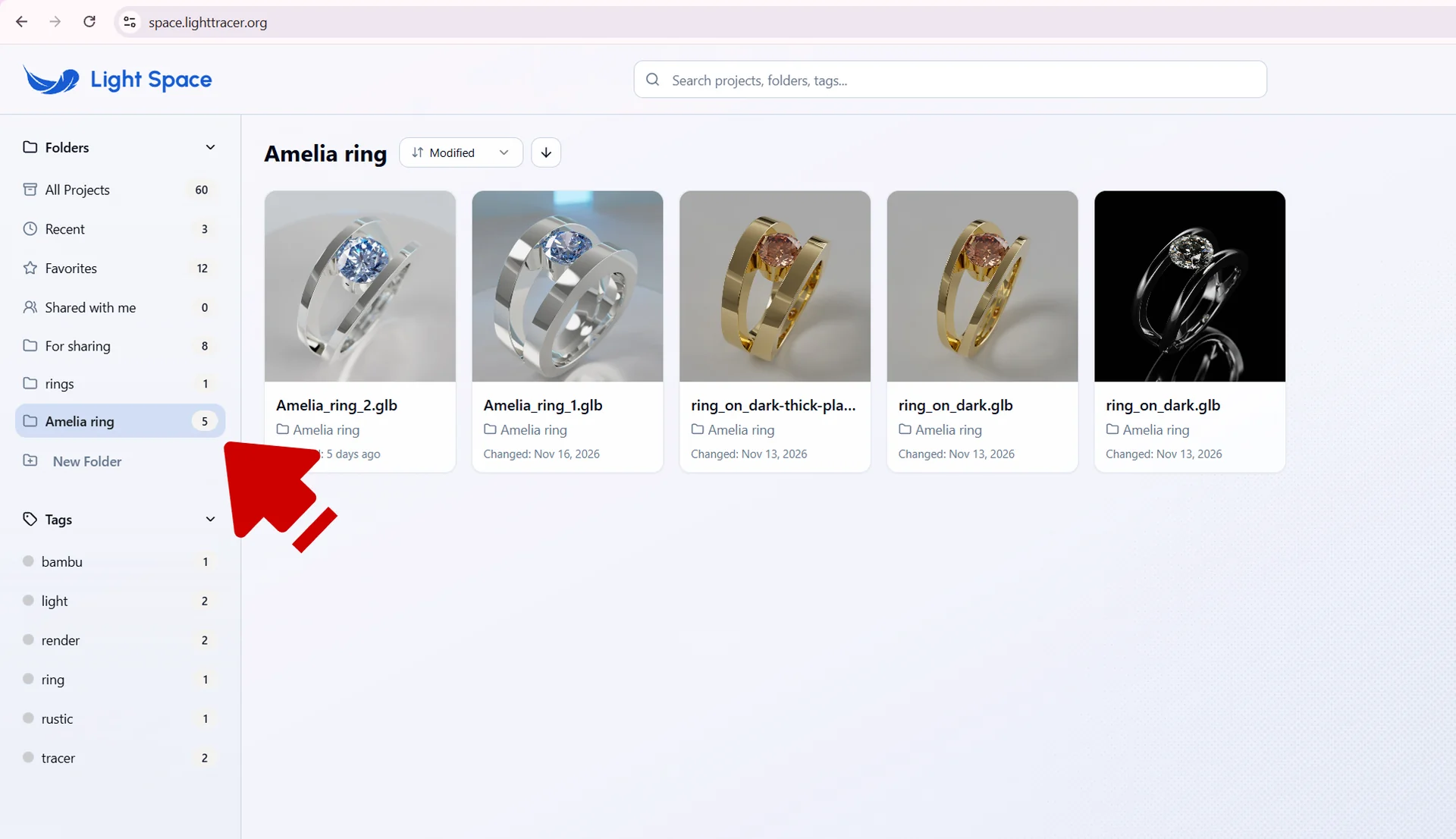
In Light Space, you can sort projects into folders – by client, by collection, or by stage of work – mark the important ones as Favorites, and add tags. Search looks through project names, folders, and tags at once.
Share a 3D Model with Your Client for Review
When clients see only the angles you picked, every new question means another message and another wait. With an interactive view, they can look at the details they care about on their own.
A Light Space link opens the scene in the browser, where the client can rotate the model and zoom in. On a ring, they can check the profile of the setting, the height of the stone, and the proportions of the band.
Start the link from a helpful view. If you’re discussing the width of the band, pick an angle that shows both the stone and the band. If the question is about the height of the setting, start from the side. Set the camera in Light Tracer Render before you sync – the link opens from that view.
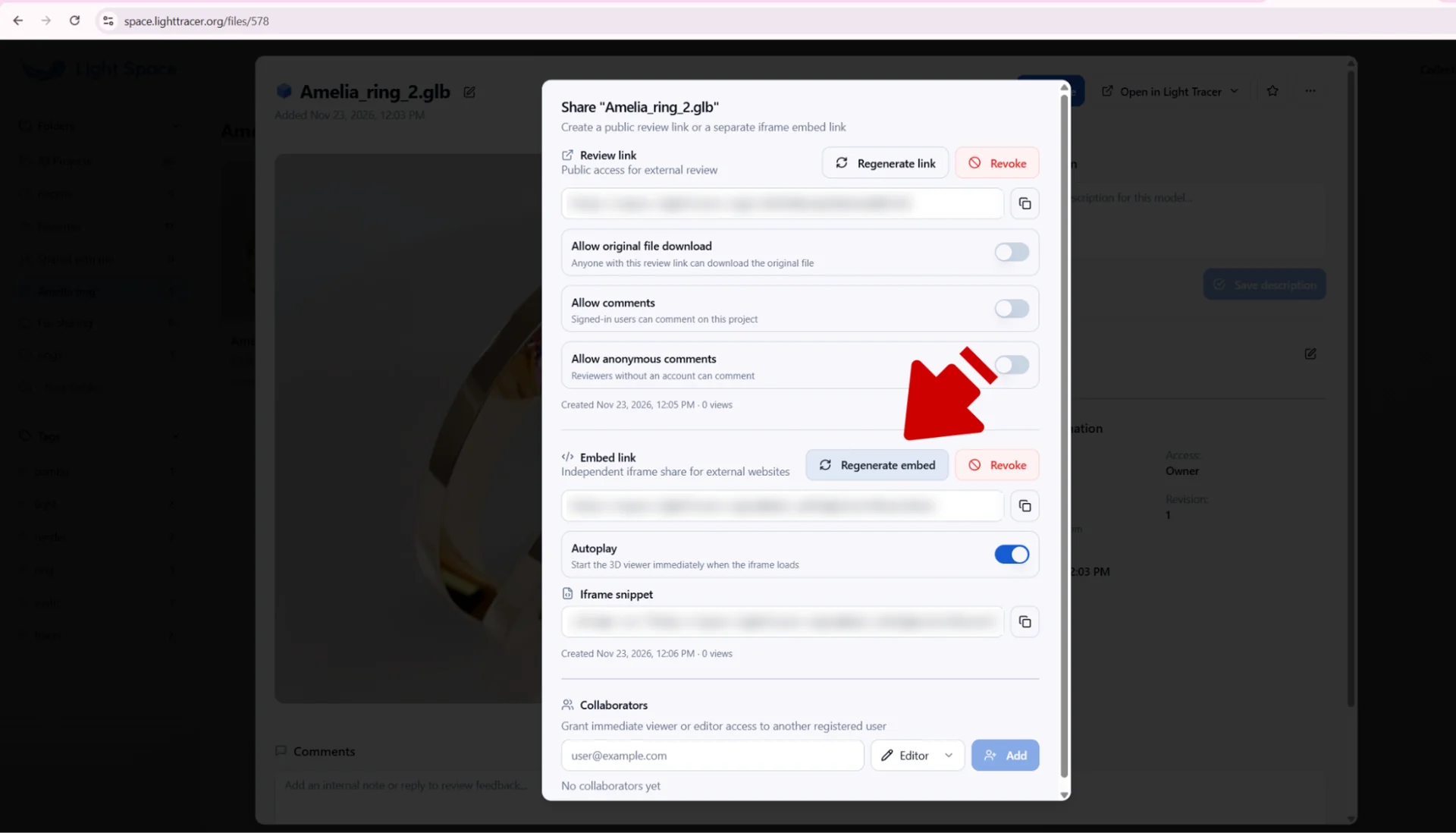
To share a project, open it in Light Space, click Share, and copy the Review link. In the same window, you decide what the client can do:
- Allow comments – signed-in users can comment on the project.
- Allow anonymous comments – clients can comment without creating an account.
- Allow original file download – anyone with the link can download the model file.
Comments appear next to the model, so the feedback stays with the design instead of getting lost in a chat. Mark each comment as resolved once you’ve made the change.
The model is rendered on the client’s own device, so they need a browser with WebGPU support, such as a current version of Chrome, Edge, Safari, or Opera. How smoothly it runs depends on the device.
Try it yourself – rotate and zoom the ring below:
Drag to rotate, scroll to zoom. The scene is rendered live in your browser by Light Viewer.
Example: Reviewing a Ring with a Client
Here’s a simple commission. Amelia brings jeweler Thomas a sketch of a ring. He builds the model and sends her a Review link. Amelia rotates the ring, leaves a comment asking for a slimmer band, and soon gets a second variant to compare with the first.
Video: sharing a 3D jewelry design with a client in Light Space.
Save Variants Your Client Can Compare
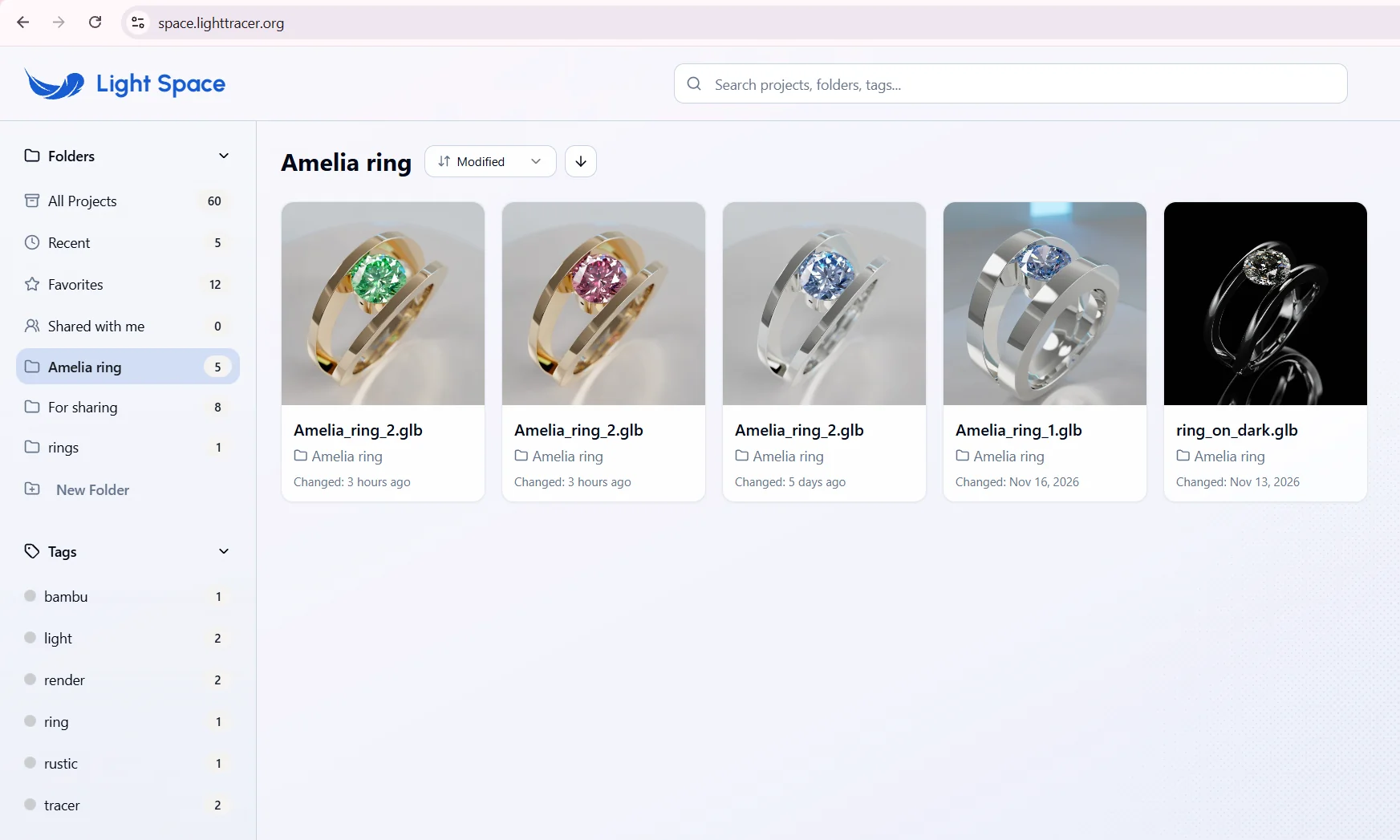
The client may want to see a different combination of metal and stone, a more matte finish, or another ring shape. Separate scenes with clear names make these options easy to compare.
You can change materials, lighting, and presentation right in Light Tracer Render. If a revision changes the construction of the piece, update the geometry in your modeling software and import it into the scene.
When you’ve changed a cloud project, two buttons appear in the Upload window:
- Re-sync replaces the cloud copy with your current scene.
- The Fork icon next to it saves your changes as a separate variant and leaves the original as it was.
Fork when you want to keep both variants side by side; Re-sync when the new one replaces the old. Give each variant a name that says what changed, for example Amelia_ring_green_gold.
Embed a 3D Viewer on Your Website
The scene stays useful after approval. On a jewelry store’s website, in a portfolio, or in a product catalog, an interactive model lets visitors explore the piece themselves: how the stone sits in the setting, what the profile looks like, how the band catches the light. The same works for any product – a buyer can turn a lamp around to find the switch.
In the Share window, the Embed link section gives you an Iframe snippet. Copy it and paste it into any site builder or blog platform that accepts iframes. With Autoplay on, the viewer starts as soon as the page loads. The embed link is separate from the Review link, so you can revoke one without breaking the other.
Social networks and messaging apps don’t run iframes, so share a link to the scene there instead.
Get Started with Light Space
Pick a piece you’re discussing with a client right now. Sync the scene to Light Space and send the client a Review link. When the design is approved, mark the final variant as a Favorite and put it on your website. New to jewelry rendering? Start with our jewelry rendering tutorial.
Open Light Space and try it with your next project. For the full feature list, see the Light Tracer Render 3.4 release notes.
Frequently asked questions
Does my client need an account to view the model?
No. Anyone with the Review link can open the model in a browser. If you turn on Allow anonymous comments, they can also leave comments without signing up.
Which browsers can open the 3D viewer?
Any browser with WebGPU support, such as a current version of Chrome, Edge, Safari, or Opera. The model is rendered on the viewer's own device, so performance depends on its GPU.
Can my client download the original model file?
Only if you allow it. Downloads are off until you turn on Allow original file download in the Share window.
Can I stop sharing a model?
Yes. Click Revoke next to the Review link or the Embed link, or Regenerate it to replace the old address with a new one.
How much cloud storage is included?
Light Tracer Render users get 2 GB of Light Space storage for free.